
In this tutorial, you will learn how to duplicate a Domain, either in whole or in part, in order to save time.
This feature is available to Super Administrators and Standard Administrators with modification rights.
From the administration portal, you can copy a Domain via the Action menu, then paste it from the home page. When duplicating, you can:
- define the name of the new Domain,
- select the groups to duplicate,
- choose the settings to keep (e-training associations, tracking services).
Options allow you to quickly select or deselect items in a tree structure.
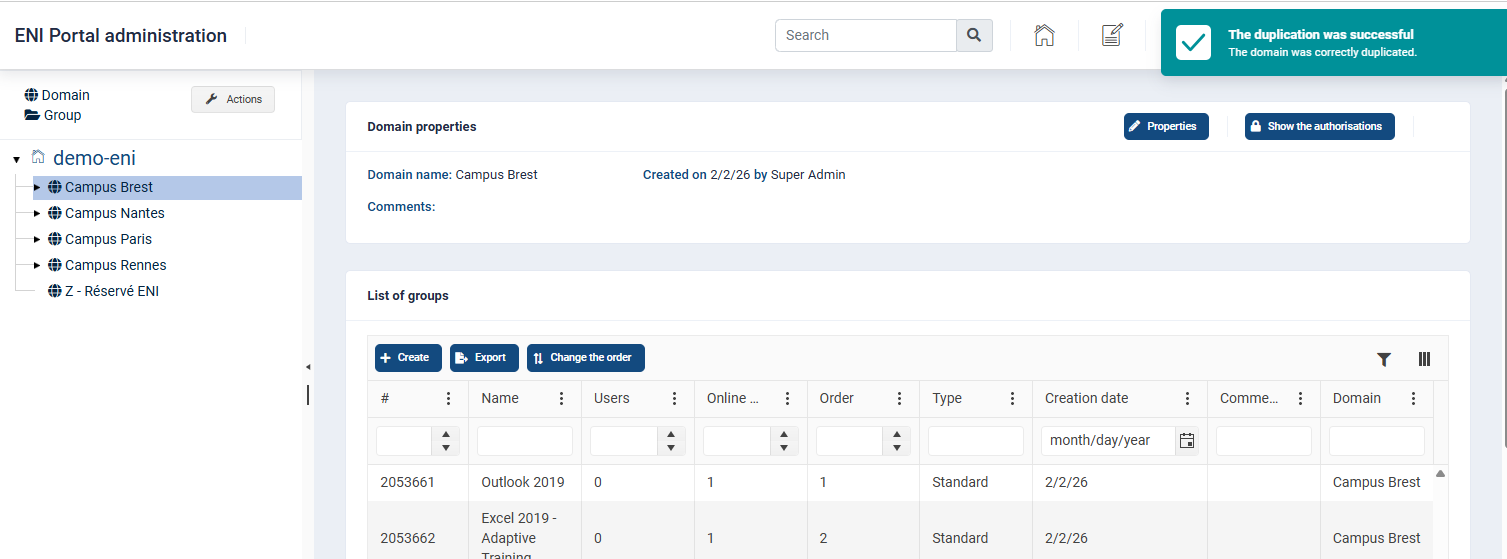
A confirmation message validates the duplication and the new Domain is displayed automatically.
***
To save time, you can duplicate a domain in whole or in part.
 This action is reserved for Super Administrators and Standard Administrators who have modification rights for the domain to be duplicated.
- Go to the home page of your administration portal.
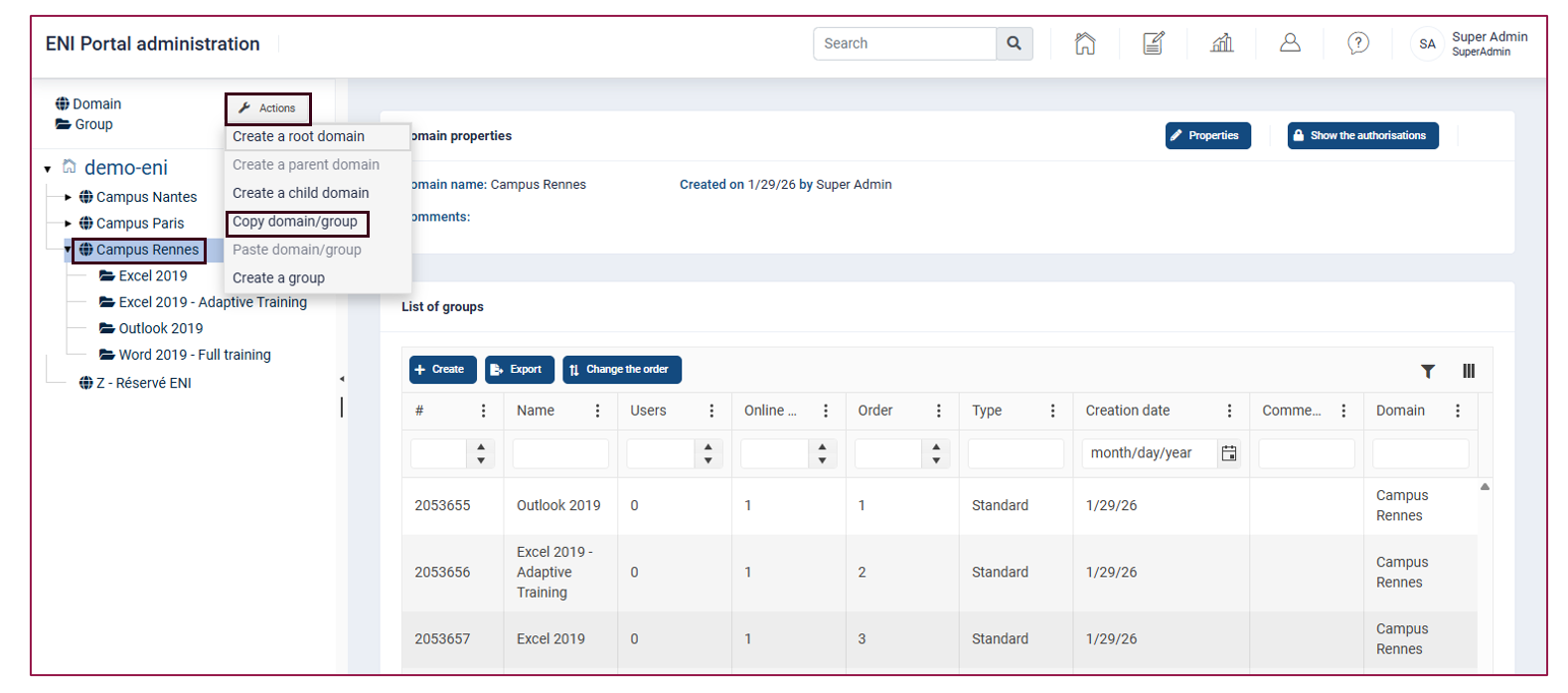
- Select the domain you want to duplicate from the tree structure.
- At the top left, click on the Actions button and select Copy domain/group.
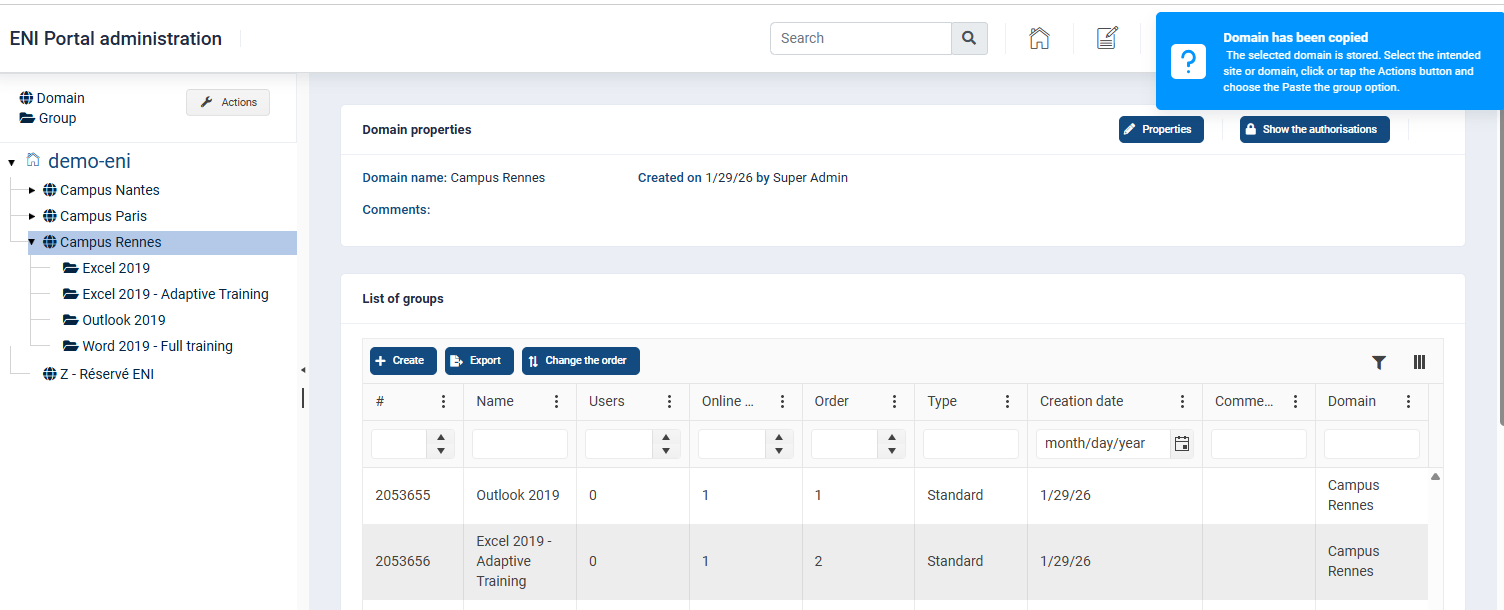
A blue pop-up appears at the top right of the screen to confirm that the domain has been successfully duplicated.
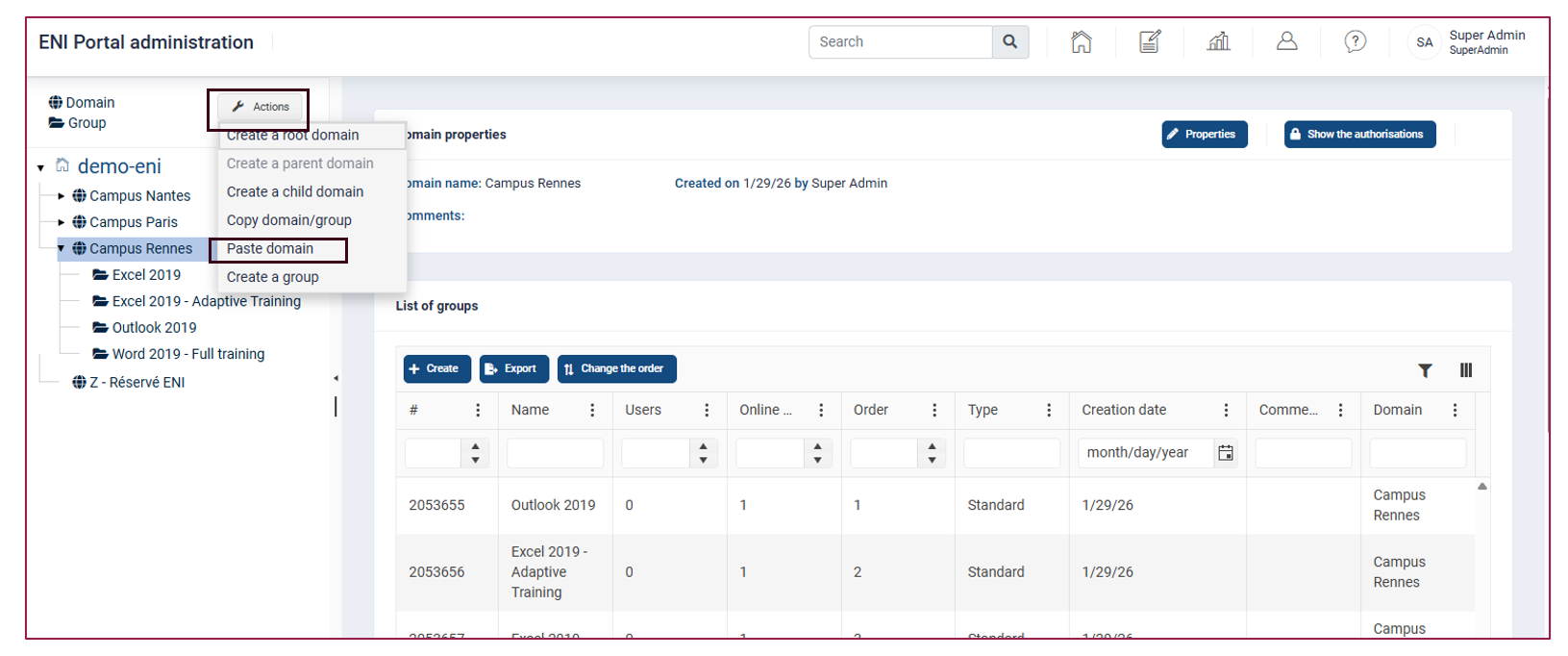
Go back to your portal's home page.
Click on the Actions button, then on Paste domain.
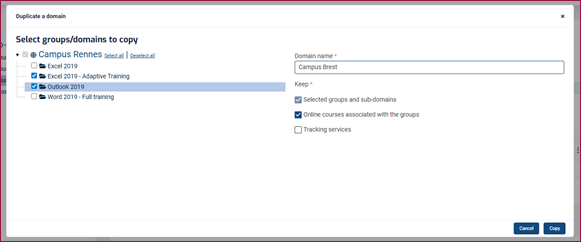
A window will open, allowing you to:
- Enter the name of the new domain (it must be different from other existing domains)
- Select the groups belonging to the domain to be duplicated
- Tick the settings to be retained for the new domain
If you tick Online courses associated with the groups, the online courses associated to the groups in the source domain will also be duplicated in the new domain. Otherwise, the duplicated groups will be created without content and you will need to associate the desired online courses. Only the group names will be retained.
If you tick Tracking services, the domain and/or groups will inherit the same email tracking settings (invitation and diligence) from the model domain. Otherwise, these settings will need to be configured again.
Once you have made your selections, click on Copy.
Tips:
The Select All/Deselect All links make it easier to manage complex tree structures.
Deselecting an item automatically deselects its child items.
- A green pop-up appears at the top right of the screen to confirm that the duplication was successful. The central page is automatically updated to display this new domain.
Related articles: